
Free Hourly Schedule Template (Excel, Word, PDF, and Printable)
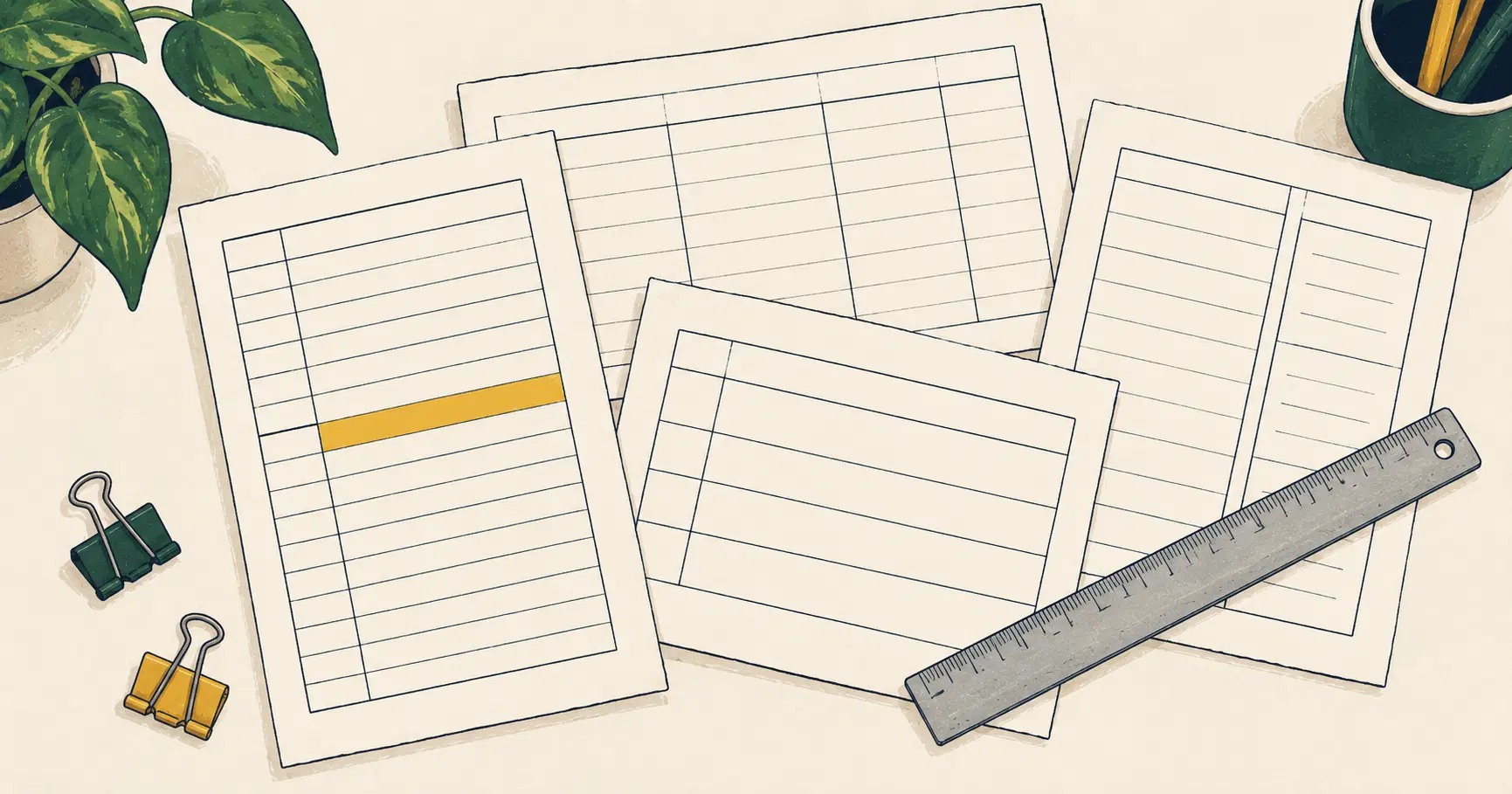
An hourly schedule template gives you a clear grid with time slots down one side and space for tasks or notes beside them. You can build one yourself in a spreadsheet or word processor, or skip the setup and use a ready tool that already has the columns, increments, and print layout in place.
Either path works. Spreadsheet files let you edit cells, adjust increments, and save as Excel or Google Sheets. Word documents and fillable PDFs suit quick printing. A browser-based option removes the need to create or download anything first.
What an Hourly Schedule Template Includes
A standard hourly schedule template starts with a time column. That column lists the hours or partial hours of the day, usually from early morning through evening. Next to it sits an activity or task column where you write what happens in each block. Many templates add a notes area for extra details and a date field at the top so you can reuse the same layout across different days.
Blank templates leave every cell empty. You type the times yourself or generate them with a fill handle, then fill in the activities. Pre-filled templates already show the hours in order. Some also include sample task labels or color coding that you can overwrite. The difference is speed versus flexibility. A blank version adapts to any day. A pre-filled version gets you started faster when the structure stays the same.
Choosing a Format: Excel, Google Sheets, Word, or PDF
Different formats serve different needs. The table below compares the most common choices for an hourly schedule template.
| Format | Best for | Editable | Prints well | Setup time |
|---|---|---|---|---|
| Excel | Detailed editing and formulas | Yes | Yes | Medium |
| Google Sheets | Sharing and mobile access | Yes | Yes | Low |
| Word | Simple text and quick print | Yes | Yes | Low |
| Fixed layout and fillable forms | Limited | Excellent | None | |
| Browser tool | Instant use without files | Yes | Yes | None |
Excel and Google Sheets both support cell formatting, time values, and the fill handle. Word works well when you mainly need a printable hourly planner template with borders and clear columns. A fillable PDF keeps the design locked so nothing shifts when you print. The browser tool sits on the page itself and removes the need to download or open another program.
How to Make an Hourly Schedule in Excel
- Open a new workbook and type the starting time in the first cell of column A, for example 6:00 AM.
- Select that cell. Drag the fill handle down the column. Excel will generate sequential times. For 60-minute increments the times appear as whole hours. For 30-minute or 15-minute increments adjust the step by entering the second time yourself and then selecting both cells before dragging.
- Format the entire time column as Time. Right-click the column, choose Format Cells, and pick a time style that matches the increment you want.
- In column B add a header labeled Activity or Task. In column C add Notes if you need extra space.
- Freeze the header row so the labels stay visible while you scroll. Select the row below the headers, go to View, and choose Freeze Panes.
- Add borders to the used range. Select the cells, open the Borders menu, and apply All Borders.
- Set the print area. Select the full schedule range, go to Page Layout, and choose Print Area then Set Print Area. Adjust margins under Page Setup so the full day fits on one page when needed.
Save the file as a free hourly schedule template for reuse. You can also protect the time column if you want others to fill only the activity cells.
How to Make an Hourly Schedule in Google Sheets
Google Sheets follows many of the same steps as Excel but differs in a few practical ways.
- Start a new sheet and enter the first time value in the top cell.
- Use the fill handle the same way as in Excel to create hour, 30-minute, or 15-minute increments.
- Format the time column as Time through the Format menu.
- Click the Share button and invite collaborators with view or edit rights.
- Open the template gallery, search for timesheet, and copy a built-in template into your drive.
- Replace the sample data in the copied template with your own hourly blocks.
Sheets makes sharing simple, and mobile editing works directly in the Sheets app, so you can update the schedule from a phone without converting files. Google's built-in timesheet templates already include date fields and total-hour calculations you can keep. Because everything lives online, the same sheet stays current across devices and does not require emailing updated versions.
Print Setup That Actually Works
Paper size matters. US Letter (8.5 by 11 inches) is the default in most North American printers. A4 (210 by 297 mm) is standard elsewhere. Choose the size that matches the paper in your tray.
Orientation is usually portrait for a single-day hourly schedule because the time column runs top to bottom. Landscape can help when you need wider activity columns or a weekly view that spreads across seven days. Set print margins to at least 0.5 inches so nothing is cut off. Narrower margins risk clipping the edges on some printers.
Browser printing sometimes adds headers, footers, or shrinks the content. Use the print preview and select "Fit to page" or "Actual size" depending on your goal. When the full day must fit on one sheet, reduce the font size slightly or hide unused rows. Test a single page first. Once the layout is correct, save the settings as a printable hourly schedule for later use.
Blank vs Pre-Filled Templates
A blank hourly schedule template gives maximum flexibility. You decide the start and end times, the increment, and the labels. This works well when every day looks different or when you need custom columns for project codes or client names.
A pre-filled template already contains the time column and often a date header. You only fill the activity cells. This saves time when the structure repeats, such as a standard workday from 8:00 AM to 6:00 PM. You can still edit the pre-filled times if a particular day needs different boundaries. Keep both versions on hand. Use the blank one for irregular days and the pre-filled one for routine days.
Time Increments: 15, 30, or 60 Minutes
Sixty-minute blocks keep the schedule short and easy to scan. They suit people whose tasks usually last an hour or more. Thirty-minute increments add detail without overcrowding the page. They fit meetings, focused work sessions, and short breaks. Fifteen-minute increments capture fine-grained activity. They help when you track many short tasks or need precise start and end times.
The risk of a too-small increment is clutter. A full day of 15-minute slots creates a long list that can feel overwhelming and may not fit on one printed page. Choose the largest increment that still shows the detail you need. You can always split a larger block into smaller ones on a busy day without changing the whole template.
Weekly vs Single Day Layouts
A single-day layout focuses on one date with full hourly detail. The time column can stretch from early morning to late evening, and the activity column has room for notes. This format is ideal when the day is dense or when you need to print a clean page for that date only.
A weekly hourly planner template shows seven days side by side or stacked. Each day may use fewer time slots or a more compact increment so the full week fits on one or two pages. The overview helps you spot patterns across the week, such as repeated meeting times or heavy workload days.
Many people keep both. The single-day version serves as the detailed working document. The weekly version acts as a higher-level map. You can generate the daily pages from the same Excel or Google Sheets file by filtering or copying the relevant columns. Linking a daily hourly schedule to a weekly view keeps the two consistent without double entry.
An online hourly planner removes the need to manage files at all. You open the page, set the date and increment, and start typing. When you need a permanent copy you export or print. The same approach works for an hour by hour schedule that must stay editable across devices.
Frequently Asked Questions About Hourly Schedule Templates
How to make an hourly schedule in Excel?
Enter the first time in a cell, then drag the fill handle to create sequential times. Format the column as Time, add activity and notes columns, freeze the header, apply borders, and set the print area. Save the finished sheet as your free hourly schedule template.
Is there a schedule template in Excel?
Yes. Excel includes several calendar and schedule templates in its template gallery. You can also download a free daily schedule template in Excel from many sites and adapt the time column to hourly, 30-minute, or 15-minute increments.
Can you provide an hour by hour schedule template in Google Sheets?
Google Sheets offers timesheet and schedule templates in its gallery. Open one, replace the sample times with your preferred increment, and adjust the columns for activities and notes. The sheet remains editable and shareable.
Does Google have a timesheet template?
Yes. Google Sheets includes built-in timesheet templates that track hours and dates. You can modify the time column to create a full hourly schedule and keep the calculation features if you need totals.
Where can I find a free schedule template?
Free hourly schedule templates are available as Excel files, Google Sheets, Word documents, and fillable PDFs. Many sites offer a free hourly planner template that you can download and edit. Browser-based tools also provide an immediate blank template without a download.
Can I download a free daily schedule template in Excel?
Yes. Search for free hourly schedule template Excel or free daily schedule template and download a ready file. Open it, adjust the time increments if needed, and save your own version.
What paper size should I print an hourly schedule on?
Use US Letter or A4 depending on your printer and location. Both sizes work for portrait or landscape orientation. Check the print margins so the full time column and activity cells stay inside the printable area.
Should my hourly schedule use 15, 30, or 60 minute blocks?
Choose 60 minutes for simple overviews, 30 minutes for most workdays, and 15 minutes when you need fine detail. Start with the largest block that still shows the necessary information so the printed page stays readable.